 Rafael Baptista
A TV that got slow
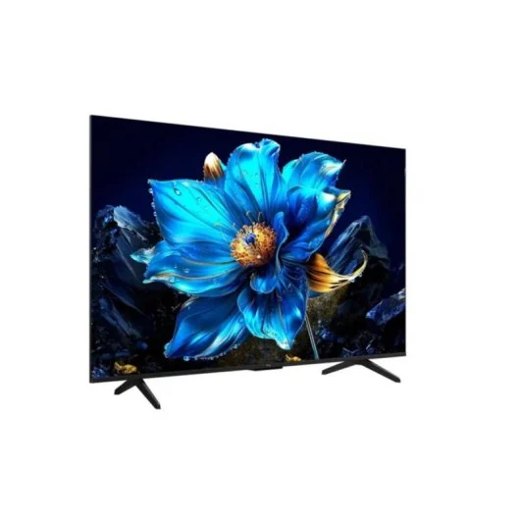
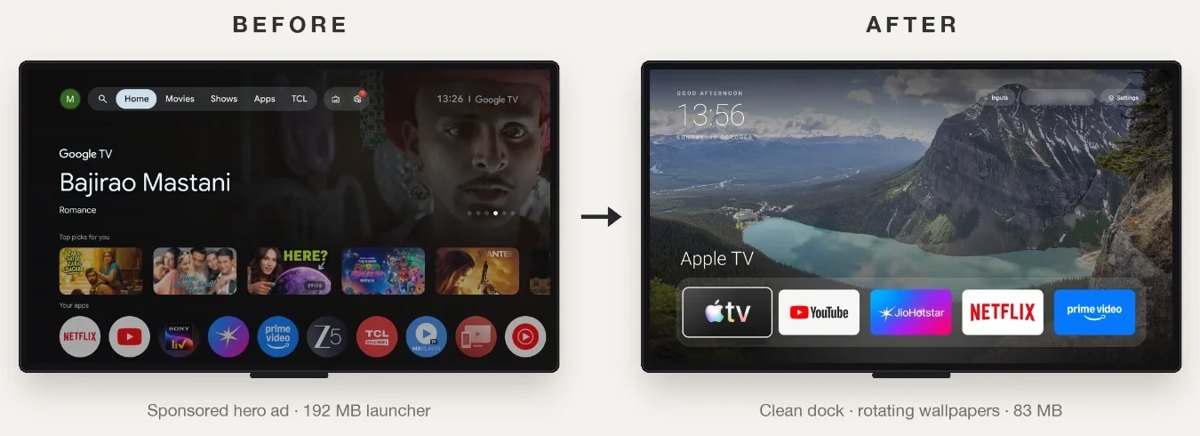
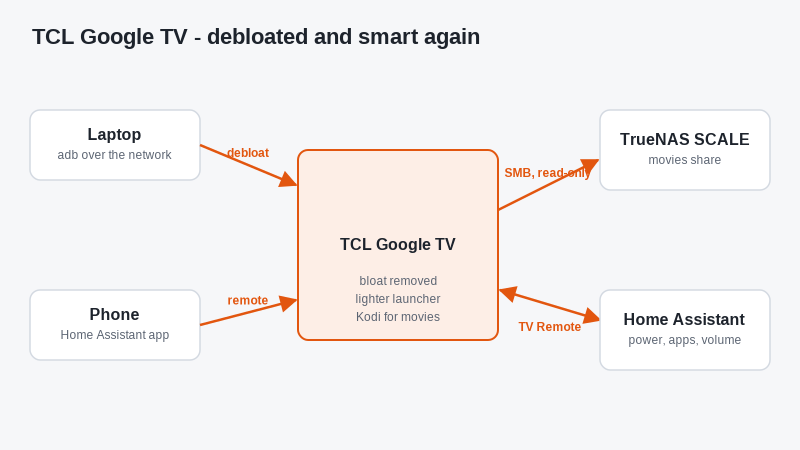
Our TCL TV runs Google TV. The screen is perfectly good, but the software aged badly: pre-installed apps nobody used, services running in the background, slow menus and a home screen that is mostly advertising - sponsored "top picks" and a big promoted banner instead of the things we actually watch. Instead of replacing it, I cleaned it up: removed the bloat, gave it a lighter and friendlier interface, put Kodi on it for our movies, and connected it to Home Assistant so it can be controlled from the app.
Guide: debloating a Google TV with ADB
Nothing here needs root, and every app removed this way can be brought back.
1. Turn on developer options and network debugging
On a Google TV: Settings > System > About, and click Android TV OS build seven times (on older Android TV menus it is Device Preferences > About > Build). In the new Developer options menu, turn on USB debugging (on many TVs this also allows debugging over the network). Note the TV's IP address.
2. Connect from the laptop
adb connect 192.168.1.60:5555     # the TV's IP address
adb devices                       # accept the prompt on the TV the first time
3. Find and remove what you do not use
adb shell pm list packages | sort            # everything installed
adb shell pm list packages -3                 # only the third-party apps

# remove an app for the current user (the TV keeps a copy, so it is reversible)
adb shell pm uninstall -k --user 0 com.example.unwantedapp

# changed your mind?
adb shell cmd package install-existing com.example.unwantedapp
Go through the list one app at a time and look up anything you do not recognise. Leave anything with launcher, setupwraith, tvsettings or the TV's input/HDMI services alone until you are sure - removing the wrong system package can leave the TV stuck in a loop until a factory reset.
4. Make it feel faster
adb shell settings put global window_animation_scale 0.5
adb shell settings put global transition_animation_scale 0.5
adb shell settings put global animator_duration_scale 0.5
Shorter animations make every menu feel quicker on old hardware.
5. A friendlier home screen: Couch TV
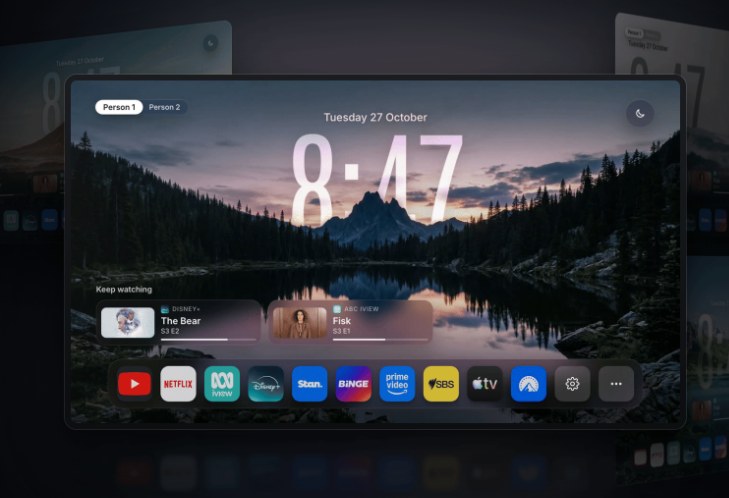
For the new home screen I use Couch TV, a free, open-source (MIT) home screen for Google TV and Android TV - and it works on the TCL. Its own motto sums it up: no ads on the home screen.
- A big glass clock over calm scenes that change by themselves, instead of a sponsored banner.
- A Keep watching row with the shows that are half-way, so the next episode is one click away.
- An app dock with only the apps we use, in our own order - Kodi, the streaming apps and settings.
- An optional privacy switch that turns off known tracking, advertising and ACR (what-are-you-watching) apps, reversibly.
- A built-in Home Assistant option, which fits nicely with the next step.
The project offers several ways to install it, including step-by-step instructions with just the TV remote and a free setup app for Windows and Mac; follow the one in its README that matches your TV.
6. Control it from Home Assistant
In Home Assistant: Settings > Devices & services > Add integration > Android TV Remote. It finds the TV on the network and pairs with a code shown on screen. After that the TV is a device in Home Assistant: power, volume, launching apps and a full remote in the Home Assistant app - and it can be used in automations, for example switching it off when everyone has left the house.
The result
The same TV, but quicker to use, without the clutter, with all our movies one click away, and controllable from every phone in the house. Cheaper and less wasteful than a new TV.