 Rafael Baptista
Why Nextcloud?
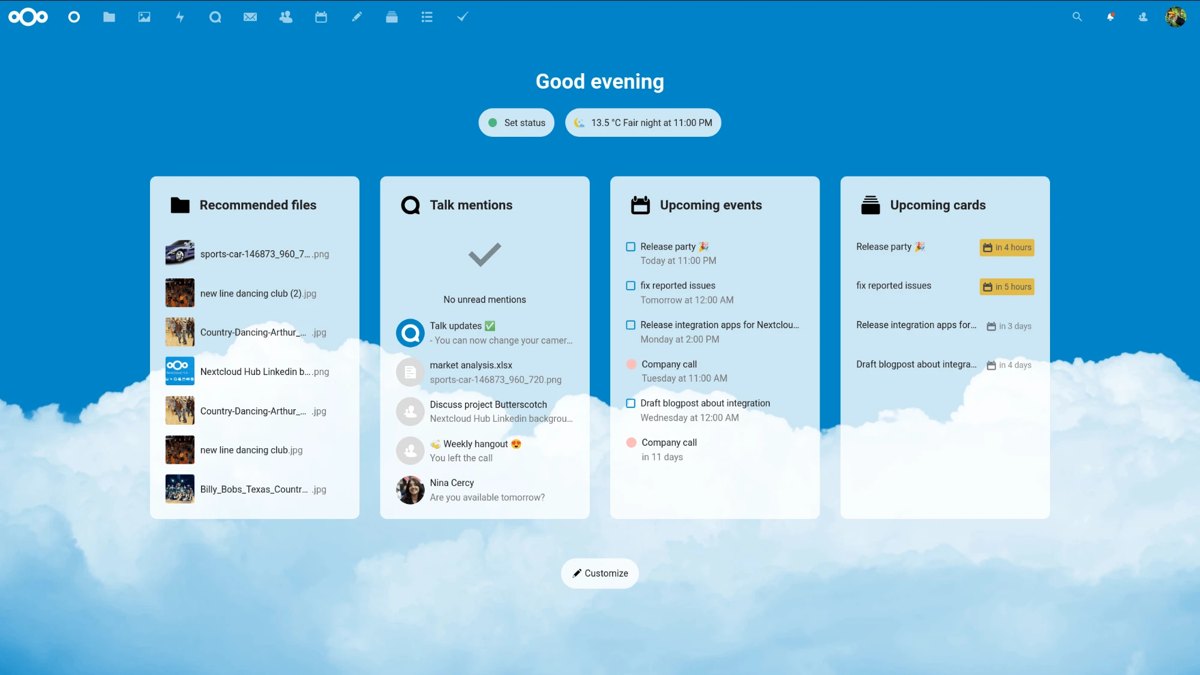
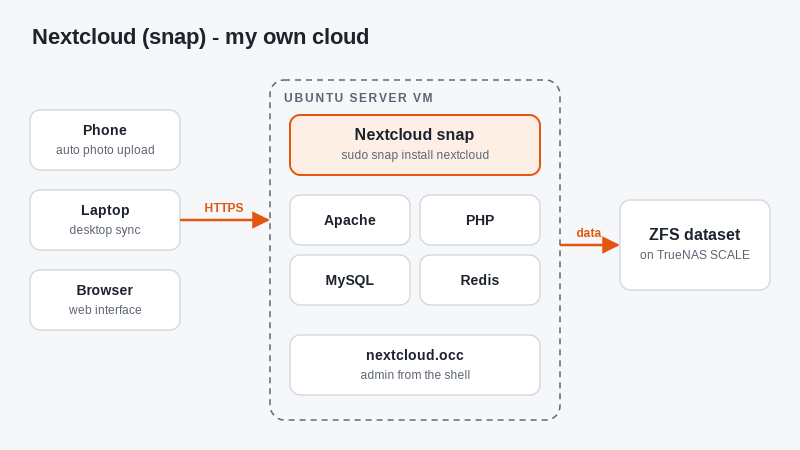
I wanted my files, photos, contacts and calendar on my own hardware instead of on Google Drive or OneDrive, with the same comfort: an app on the phone that uploads photos by itself, a sync client on the laptop and a web interface for everything else. Nextcloud does all of that, and it runs in an Ubuntu Server VM on my Supermicro server, so the data ends up on the ZFS pool with its snapshots and redundancy.
Why the snap
A normal Nextcloud install means setting up Apache or Nginx, PHP with the right modules, a database and Redis yourself, and keeping all of it updated. The snap package bundles all of those, updates itself, and still gives full admin control through nextcloud.occ. For a home server that is the right trade-off.
Guide: Nextcloud snap on Ubuntu Server
1. Install
sudo snap install nextcloud2. Create the admin account
Either open http://<VM-IP> in a browser and fill in the form, or do it from the shell:
sudo nextcloud.manual-install admin 'a-long-unique-password'3. Tell Nextcloud which address it is reached on
Nextcloud refuses requests for hostnames it does not know. Add the IP and the domain name:
sudo nextcloud.occ config:system:set trusted_domains 1 --value=192.168.1.50
sudo nextcloud.occ config:system:set trusted_domains 2 --value=cloud.example.com
4. Turn on HTTPS
# with a real domain pointing at the server (ports 80 and 443 reachable):
sudo nextcloud.enable-https lets-encrypt

# or, for LAN / VPN-only use:
sudo nextcloud.enable-https self-signed
5. Useful occ commands
sudo nextcloud.occ status                 # version and maintenance state
sudo nextcloud.occ user:list              # all users
sudo nextcloud.occ files:scan --all       # pick up files copied in from outside
sudo nextcloud.occ maintenance:mode --on  # before backups or big changes
sudo snap refresh nextcloud               # update now instead of waiting
6. Clients
Install the Nextcloud app on the phone and turn on automatic photo upload, and the desktop client on the laptop for folder sync. Contacts and calendar sync over CardDAV/CalDAV.
Backups
Because the VM disk sits on ZFS, TrueNAS takes scheduled snapshots of it. For a consistent copy I put Nextcloud in maintenance mode, snapshot, and switch maintenance mode off again - a few seconds of downtime.
How it went
Honestly: this was one of the easiest projects in the home lab. One snap install, an admin account, the trusted domains and HTTPS, and it was running - the snap takes care of the web server, PHP, the database and updates. Most of the time went into installing the apps on the phone and laptop and letting the first sync finish.